Batch Manager
1. Overview
The Batch Manager lets you queue up multiple simulation files and run them one after another without needing to open and run each simulation manually. This is useful for running a large number of simulations unattended, such as overnight or while you work on something else.
Each entry in the queue is an existing simulation file (.sol) that has already been set up and saved from the circuit simulator. The Batch Manager itself does not let you configure simulation settings or sweep component values, it simply runs the queued files in order.
2. Opening the Batch Manager
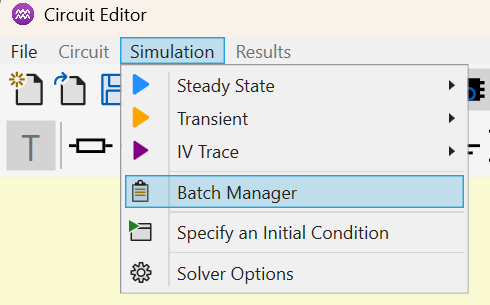
To open the Batch Manager, use the menu Simulation → Batch Manager.
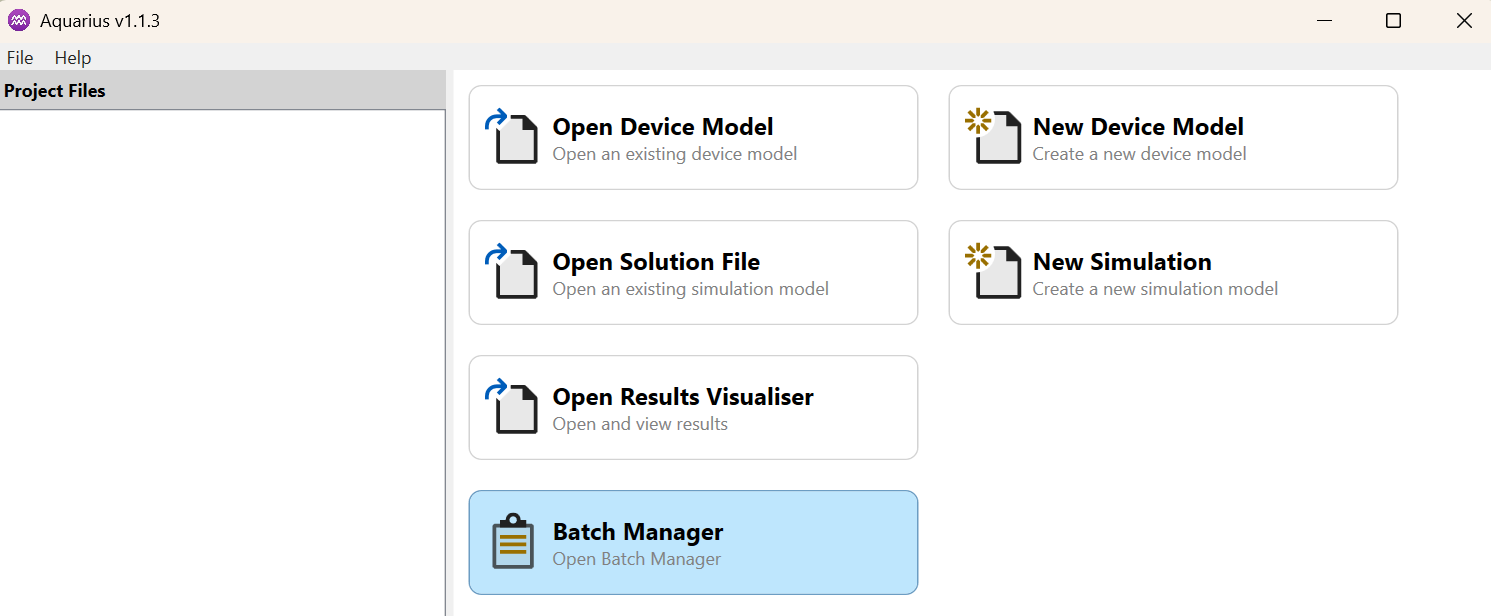
Alternatively, press the Batch Manager in the Main Window toolbar.
3. Queuing a Simulation
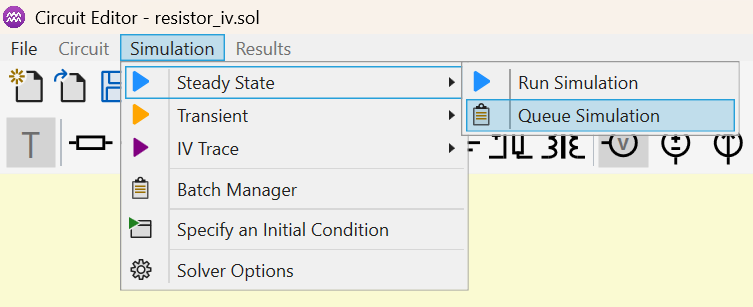
Instead of adding a saved file after the fact, you can send the circuit you currently have open straight to the Batch Manager. In the Simulation menu, each simulation type (Steady State, Transient, IV Trace) has a Queue Simulation alongside its Run Simulation option. Selecting it saves the current circuit and adds it as a new entry in the Batch Manager queue, opening the Batch Manager if it is not already open.
4. Running a Batch
To run the queued simulations:
- Press
Start Simulation . The queue will run in order from top to bottom.
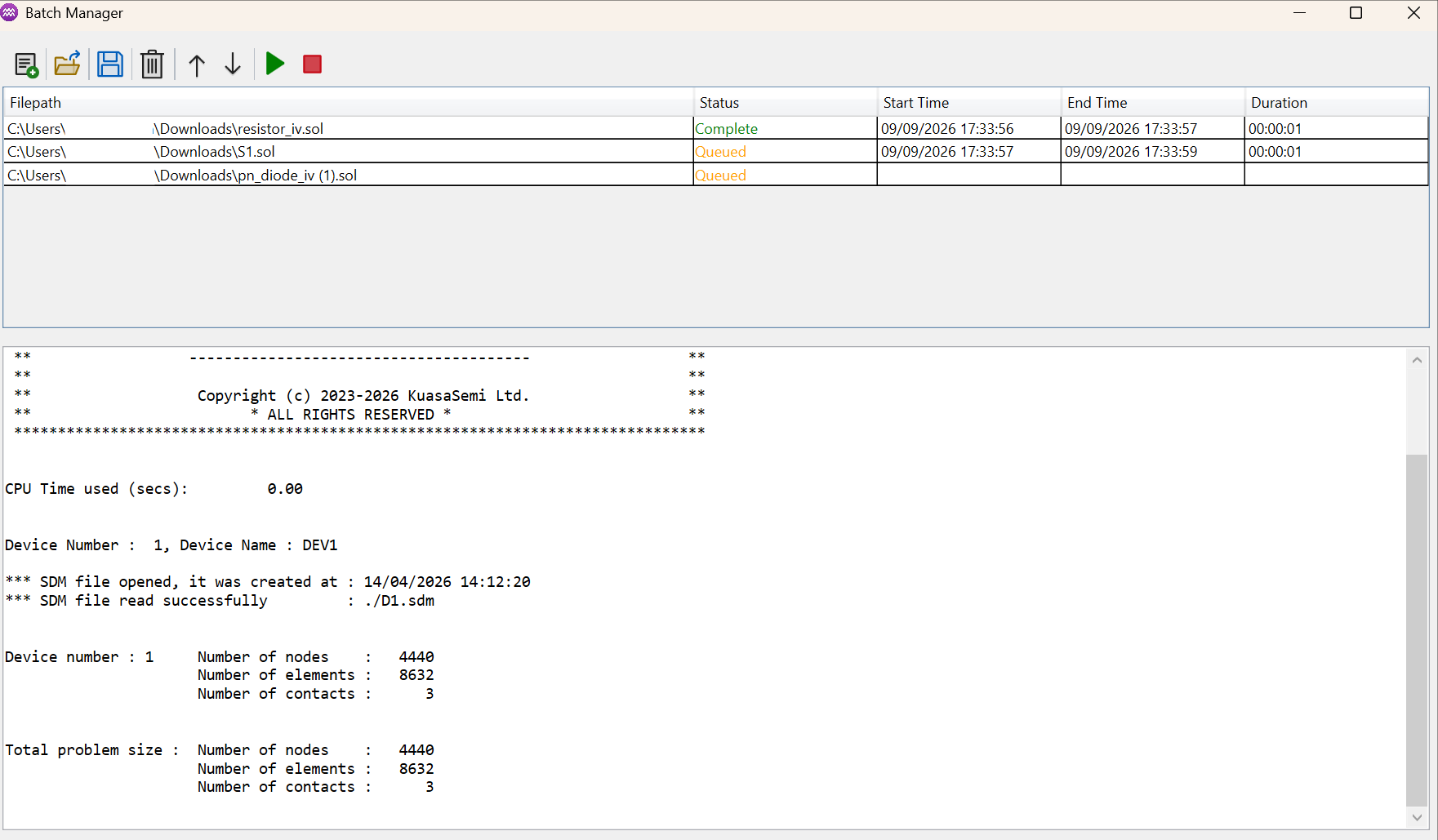
 - Each entry's status updates as it progresses:
Queued→Running...→CompleteorFailed. - Simulation output is shown live in the console panel below the queue.
Entries already marked Complete are skipped if you start the batch again, so you can add new files to a finished queue and rerun without repeating work already done.
To stop a batch in progress, press Stop Simulation . The currently running simulation is cancelled and its status reverts to
 Queued.
5. Managing the Queue
The queue is displayed as a list, showing each file's path along with its status, start time, end time, and duration.
- Add Simulation Files
 – opens a file dialog to select one or more .sol files to add to the queue.
 - Delete
 – removes the selected entry from the queue.
 - Move Up
 / Move Down
 – reorders the selected entry, changing the order in which it will run.
 - Open Batch File
 – loads a previously saved queue from a .man batch file. If any of the referenced simulation files can no longer be found, you will be notified and those entries are skipped.
 - Save
 – saves the current queue to a .man batch file so it can be reloaded later.
The queue can only be edited while no batch is running. Add, delete, reorder, open, and save are disabled while a simulation is in progress.